

Note
Go to the end to download the full example code or to run this example in your browser via Binder.
OGSTools Framework - Complete Workflow Guide#
This guide demonstrates the complete OGSTools workflow for setting up, running, and analyzing OpenGeoSys (OGS) simulations. It helps to get an overview of how the different components work together.
Workflow Overview#
Setup: Load or create Project files and Meshes
Compose: Combine components into a Model with Execution settings
Run: Execute simulations and get Results
Analyze: Visualize and examine simulation outputs
Store: Save and reload simulation data for later use
For detailed information on each component, see the linked examples throughout this guide.
import numpy as np

import ogstools as ot
from ogstools.examples import load_meshes_simple_lf, load_project_simple_lf
1. Setup: Project Files and Meshes#
The first step is to prepare your simulation inputs. OGSTools provides two main components for this:
Project Files (
Project): Contains the simulation configuration (process type, parameters, boundary conditions, etc.) based on OGS .prj files (XML-format).Meshes (
Meshes): Contains the computational domain geometry and mesh data. Can include multiple meshes (domain + boundary meshes).
For this example, we load pre-configured components.
project = load_project_simple_lf()
meshes = load_meshes_simple_lf()
In practice, you would:
Create Project files programmatically: See How to Create Simple Mechanics Problem
Generate meshes (with GMSH, Pyvista or similar): See Meshes from gmsh (msh2vtu), Extracting boundaries of a 2D mesh
Understanding Meshes: Input Geometry with PyVista#
Meshes is the input mesh for OGS. Technically it is a collection of PyVista Unstructured grids that represent
your simulation domain. You can access and manipulate individual meshes:
# Access a specific boundary mesh
print(f"Available meshes: {list(meshes.keys())}")

# Meshes are PyVista objects - The example shows how you can set initial conditions or properties
meshes["right"].point_data["pressure"] = np.full(meshes["left"].n_points, 3.1e7)

# Visualize the mesh topology
fig_topology = meshes.plot()
fig_topology.show()
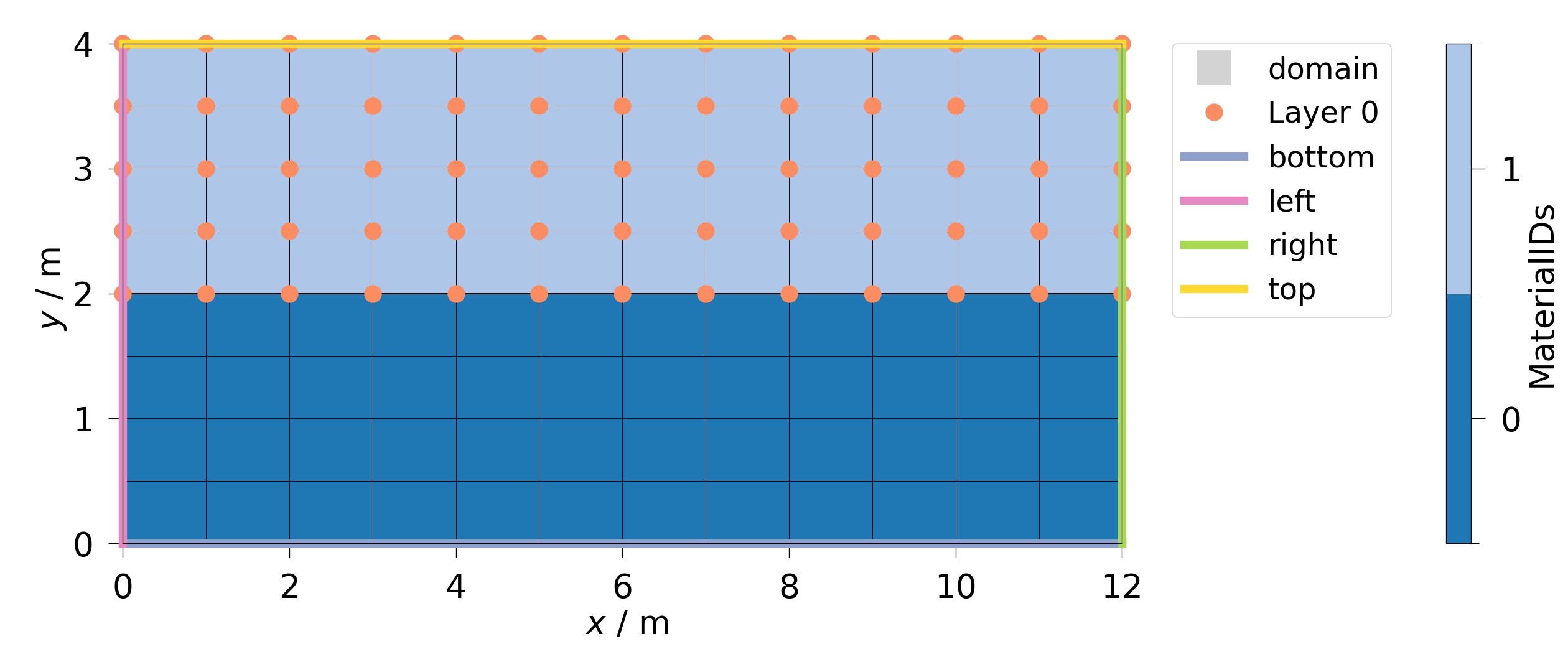
Available meshes: ['domain', 'bottom', 'top', 'right', 'left', 'Layer 0']
See also:
Creating meshes from vtu surface files - Load meshes from VTU files
Setting initial properties and variables in bulk meshes - Set initial conditions
2. Compose a Model#
A Model combines all components needed to run a simulation:
project: The simulation configuration (
Project)meshes: The computational meshes (
Meshes)execution: Runtime settings (
Execution)
The Execution object controls how OGS runs (threads, MPI ranks, logging, etc.):
model = ot.Model(project=project, meshes=meshes)

# Optionally configure execution settings
# e.g. model.execution.interactive = True # Uncomment for stepwise control

# Visualize the model setup with boundary conditions
fig_constraints = model.plot_constraints()
fig_constraints.show()
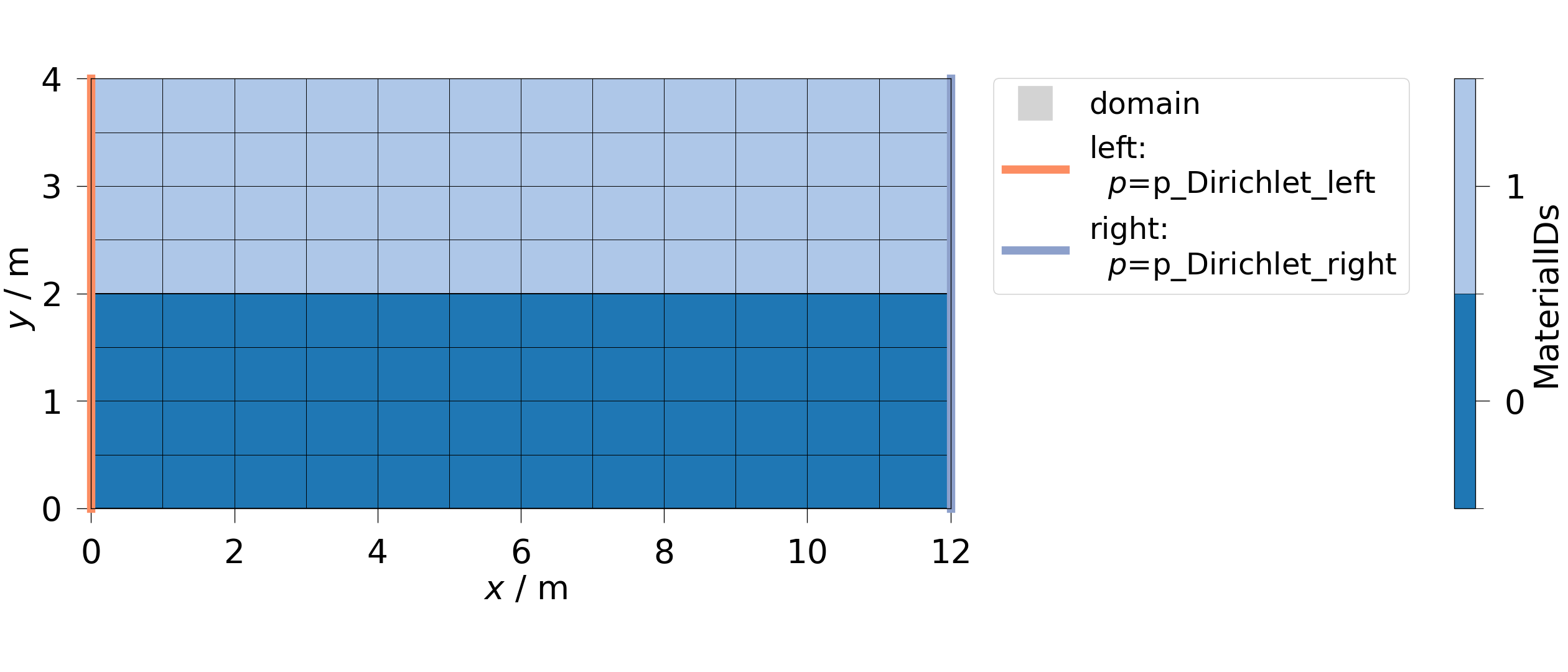
The constraints plot shows your model domain with annotated boundary conditions and source terms, making it easy to verify your setup before running.
3. Run: Execute the Simulation#
OGSTools provides two ways to run simulations:
- Option 1: Direct run (used here)
model.run()- Blocks until completion, returnsSimulation- Option 2: Controlled execution
controller = model.controller()- Returns a SimulationController for monitoring
The controller approach gives you fine-grained control over execution.
See also: Run a simulation
controller = model.controller()
# Monitor status
print(controller.status_str)
# Run to wait for completion
sim = controller.run()

# Check simulation status
print(f"Simulation status: {sim.status_str}")
<bound method OGSNativeController.status_str of Model.from_folder('/tmp/ogstools_root/Model/20260903_083710_715595').controller(sim_output='/tmp/ogstools_root/Result/20260903_083710_999560', overwrite=True)
meshseries_file='/tmp/ogstools_root/Result/20260903_083710_999560/LiquidFlow_Simple.pvd'
logfile='/tmp/ogstools_root/Result/20260903_083710_999560/log.txt'
status=Status: running for 0.0002789497375488281 s.
execution.interactive=False>
Simulation status: Status: completed successfully (results available)
The Simulation object contains:
model: The Model that was run
result: Link to output files (MeshSeries)
log: Parsed simulation log for analysis
status: Completion status (derived from log analysis)
4. Analyze: Visualize and Examine Results#
After simulation, you can analyze results using two main components:
- MeshSeries (
MeshSeries) Access simulation results at different timesteps for visualization.
- Log (
Log) Parse and analyze the simulation log (convergence, timing, errors).
Visualizing Results with MeshSeries#
The sim.result property provides a MeshSeries interface to your output data.
You can index it like a list to get results at specific timesteps:
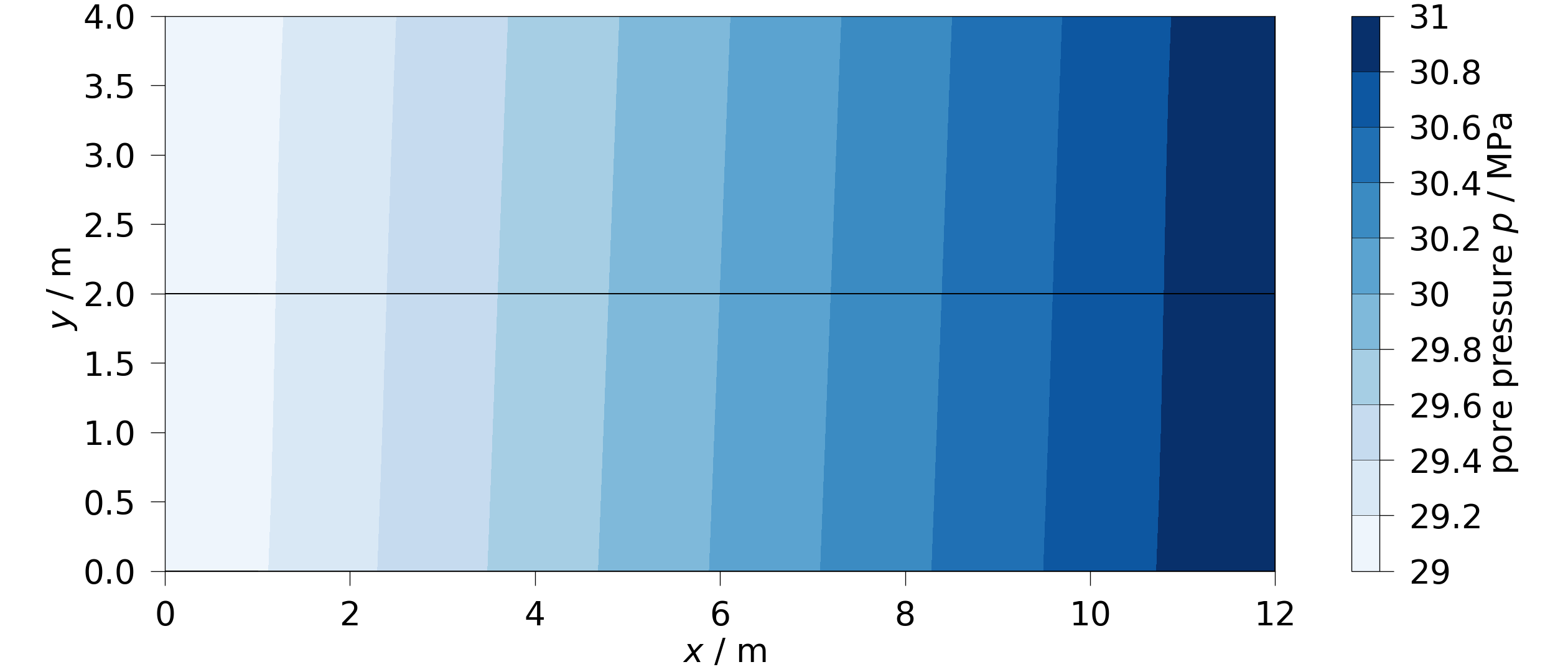
MeshSeries capabilities:
Access any timestep:
sim.result[0],sim.result[-1]Iterate over time:
for mesh in sim.result: ...Time slicing:
sim.result[::10](every 10th timestep)Unit conversion:
sim.result.scale(time="h", length="cm")
See also:
Read mesh from file (vtu or xdmf) into pyvista mesh - Detailed MeshSeries tutorial
Visualizing 2D model data - 2D visualization options
Visualizing 3D model data - 3D visualization options
How to create Animations - Create time animations
Analyzing Convergence with the Log Parser#
The log parser extracts convergence data, timestep information, and errors from the simulation log file:
# Plot clock time per solver phase
df_ts = ot.logparser.analysis_time_step(sim.log.df_log).reset_index()
times = ["assembly_time", "dirichlet_time", "linear_solver_time"]
ax = df_ts.plot.area(x="time_step", y=times, ylabel="clock time [s]", grid=True)
ax.get_figure().tight_layout()
ax.get_figure().show()
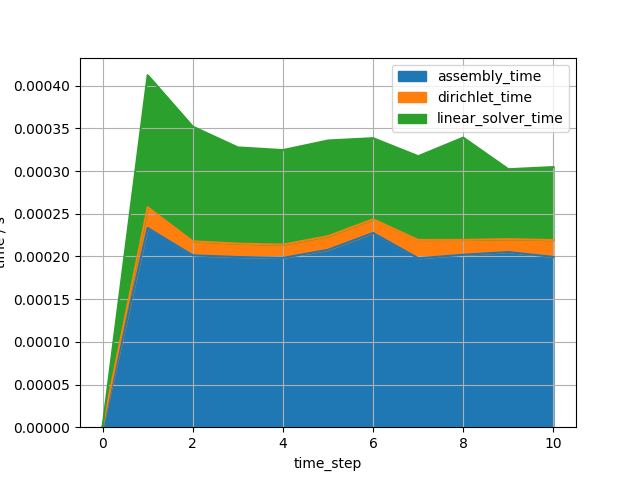
Plot convergence behaviour
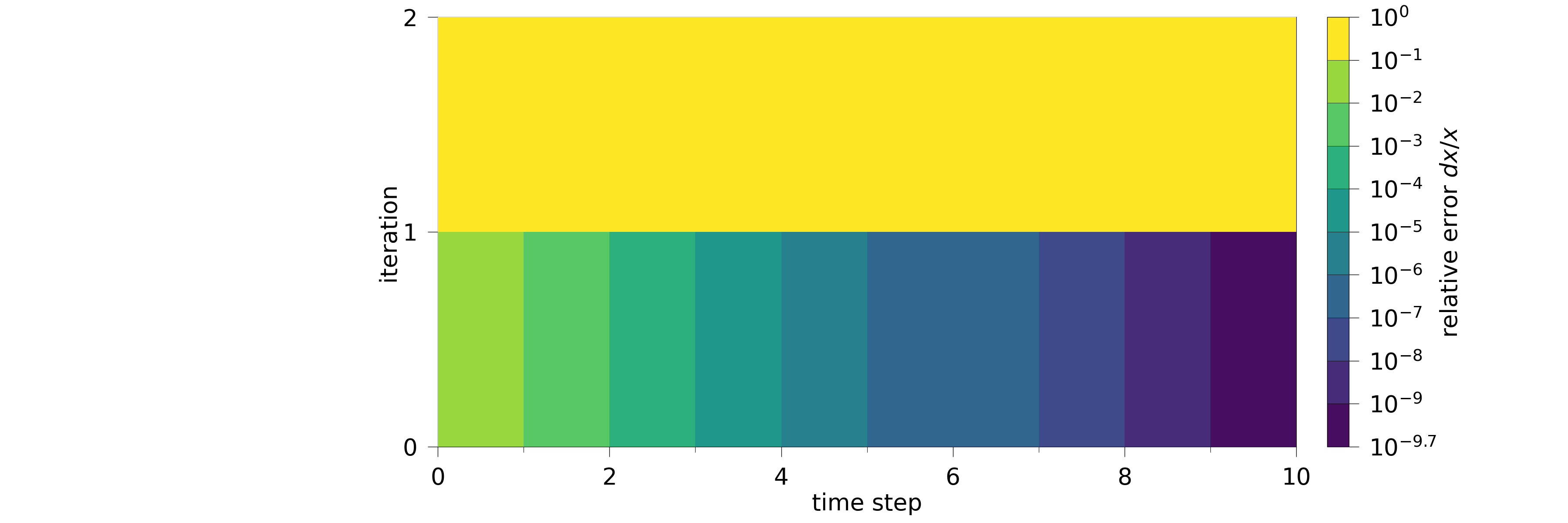
The convergence plot is a heatmap of the relative error at each iteration and time step, giving an overview of how the nonlinear solver converged over the entire simulation and helping you identify potential numerical issues. In this simple example all timesteps converge in 2 iterations.
Log analysis capabilities:
Convergence data:
sim.log.convergence_newton_iteration()Time step info:
sim.log.time_step()Termination status:
sim.log.simulation_termination()Custom plots:
sim.log.plot_convergence(metric="dx", x_metric="model_time")
See also:
Logparser: Introduction - Log parser introduction
Logparser: Predefined Analyses - Analysis examples
Logparser: Advanced topics - Advanced log parsing
5. Store: Save and Reload Simulations#
OGSTools provides a unified storage system for saving complete simulations (or individual components) for later analysis or sharing.
Key features:
Cascading save: Saving a Simulation automatically saves Model and Results
Archive mode: Create self-contained copies (no symlinks)
ID-based organization: Use IDs for organized storage
Complete roundtrip: Save → load → identical object
[]
Total running time of the script: (0 minutes 1.361 seconds)
